banner

Latest Movie :
Recent Fab arts

Animation vs animation video

   This is my very first animation vs animation video. Waiting for your comments.

{[['']]}

How to find out Square Roots of any number.

Well it is quite clear from the title that this section only contains topic on finding Square Roots.


As per Mathematics, any problems can be solved either by predicting or by solving. Therefore Hit and Trial method can be used if and only if you have idea of a number. Otherwise, it's a waste of time.
Coming to the point, We're going to follow a step by step method to find out Square roots for a given number.
Step -1 :-
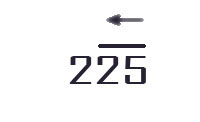
           Let square of a number be 225.

To find out square root of a number we need to form pairs of the number. This is to be done from the right side to left side.
                     

Now, as the pairing is done. a single number "2" is left. Now the next step is to start the common long division method.

Step -2 :-
    When finding the square roots, At the time of dividing, one should always keep in mind that divisor should be a number multiplied by itself. Since we are determining square roots.

From this it is clear and figured out that, the number 225 was square of the number 15. That's all.
 I hope, this thing helps. 

{[['']]}

DIGITAL PAINTING OF EDWARD,TWILIGHT SAGA


                                             digital painting of EDWARD CULLEN
   
{[['']]}

digital painting of kajal agarwal


                                                     digital painting of kajal agarwal
{[['']]}

How to Use Group Policy editor (GPEDIT.msc)

Tips and tricks in this section are very easy to understand. Because it does not cover any programming languages.
To open gpedit.msc, start " run " utility. Type in " gpedit.msc ".
A Group Policy window opens.
I am not going to explain any menu bar. So left side of the window shows the hierachies for every portion we are going to consider.
In Right hand side of the window, it shows the configuration item list
    "Computer Configuration"
    "User Configuration"
The Computer configuration section contains, settings that can be used to configure the computer's operations. Whereas the User configuration section contains, settings for every single user logged on to the computer.
Both configurations list contains three folders:-
  Software settings
  Windows settings
  Administrative Templates
The "Administrative Templates" contains the part that is what is going to be our primary topic.

Administrative templates contains seven more folders that actually defines the settings related to that particular purpose.

Windows Componens:
  Contains each n every windows related operations that can be avoided or forced. 
For example:- If someone doesn't want the file menu to be visible in windows explorer. Then it is very handy to use this technique. This is how it should be experimented.:-
  User Configuration - Administrative Template - Windows Components - Windows Explorer 
   Look for a section that asks for removing File menu from Windows Explorer. Open it by double clickin on it. In the properties dialogue box, enable it.
That's all refresh once. A go and check it out if your windows explorer contains file menu.:)

Start menu and taskbar: This folder contains settings related to start menu and taskbars.

Desktop: This folder contains settings related to desktop. That is any hack related to desktop can viewed in here.
Control Panel: Control panel settings can be edited or viewed in this folder.

Shared Folders, Network and System folder contains respected settings.

Well, I hope this things help. 
{[['']]}

Task Manager Hack

Task Manager is a powerful utility of windows. Many of us may know the use of it. But for most of the beginners it may be a very useful term.

Task manager maintains all tasks that is still running. For example: If a Pin Ball game is running, to start task manager utility press" Ctrl + Alt + Del". this opens task manager dialogue box. The application tab of which shows the running application. And it will show Pin Ball in its list.

If a software is hung for a while and you can't get rid out of it. This is the best method i usually follow.
Let it be the Pin Ball game that is hung. go to Task manager. click on application tab. (By default it is activated)
Right click on it. Click on "go to process". It will link us to itself in the process tab. Process tab is a list of each and every task still running in the background by the help of any means. Then click on "End Process" to end the process that is stuck. or right click on it to get more options.

Changing the view of the Task Manager. You just need to double click on the space between tabs and the list between the borders. That's it. Its default view is changed with compact view. cheers!
{[['']]}

Banner

 
Support : Creating Website | Johny Template | Mas Template
Copyright © 2011. a2ztuts - All Rights Reserved
Template Created by Creating Website Published by Mas Template
Proudly powered by Blogger